By John Jordan
 Explore practical SAP Controlling (CO) tips for cost center accounting, internal orders, profit center accounting, and product cost planning. This page includes excerpts for the first 19 tips and the full table of contents.
My SAP PRESS book 100 Things You Should Know About Controlling with SAP includes step-by-step instructions and screenshots. The second edition contains 110 tips, including 10 bonus tips.
Free Sample Tips
- Cost Center Accounting (Tips 1–11)
- Internal Orders (Tips 12–14)
- Profit Center Accounting (Tips 15–16)
- Product Cost Planning (Tips 17–19)
- Full Book Table of Contents
The excerpts use classic SAP ERP transactions and screens. For S/4HANA-specific guidance, see SAP Product Cost Controlling in S/4HANA.
PART I: Cost Center Accounting
We'll first explore 11 tips for Cost Center Accounting, including working with the standard hierarchy, planning, price calculation, and target cost and variance analysis.
1 Maintain Standard and Alternate Hierarchies
You can easily maintain standard and alternate cost center hierarchies for flexible reporting.

Figure 1: Cost Center Standard Hierarchy
The cost center standard hierarchy usually represents your company's structure; you use it most often in your reporting. This is because the standard hierarchy, guaranteed to contain all the cost centers in a controlling area, is easily maintainable. An example of a cost center standard hierarchy is shown in Figure 1. While alternative hierarchies offer more flexible reporting, you can only maintain them with a transaction that has less functionality.
2 Swap the Standard Hierarchy
If you use an alternate hierarchy more than the standard hierarchy, you can swap them by maintaining the Controlling Area as shown in Figure 2.

Figure 2: Maintain Controlling Area
The simplest solution is to copy the alternate hierarchy as a node directly under the standard hierarchy and then delete the other existing nodes. However, if you attempt to create the alternate hierarchy as a node directly under the standard hierarchy, you'll receive an error message stating that the cost center group already exists. This tip provides a procedure for streamlining the changeover.
3 Assign Cost Element Default Account
Maintaining cost element master data in ECC and R/3, as shown in Figure 3, allows you to assign a default account quickly.

Figure 3: Default Account Assignment
When posting to Controlling (CO), you need to assign a cost object, such as a cost center or order. You assign a default object so that you don't have to enter every expense posting manually.
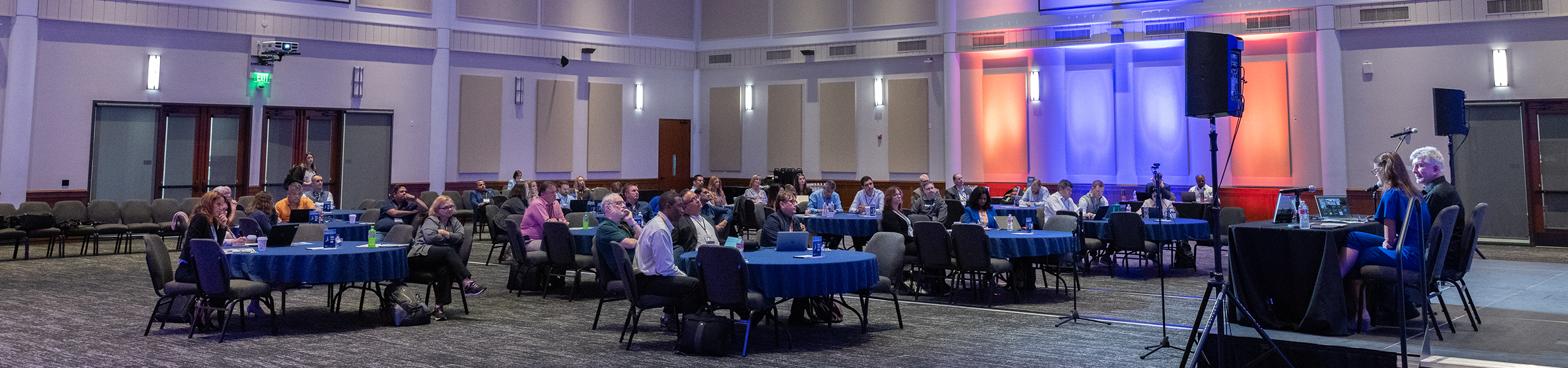
Watch Paul Ovigele discuss the book during his Keynote: SAP Controlling Financials Conference:
4 Automatic Account Assignment
You can make default cost center assignments per plant with automatic account assignment with transaction OBYC.
Automatic account assignment lets you enter a default cost center per primary cost element for each plant. Automatic assignment occurs during postings in external accounting modules (such as Financial Accounting, Materials Management, and Sales and Distribution) if you don't enter an automatic account assignment object (such as a cost center or order) during a cost accounting-relevant posting.
We look at how to set a default account assignment as shown in Figure 4.
Figure 4: Automatic Account Assignment Configuration
Continue reading: 100 Things You Should Know About Controlling with SAP
5 Plan Activity Price with Activity Type Group
When entering plan activity prices, you can filter the price-planning screen with activity type groups to display only the activities you work with.
Activity type groups allow you to limit the types of activities displayed when planning activity prices with Transaction KP26. When planning activity prices, you enter an individual activity type, range, or group in the initial selection screen, as shown in Figure 5.

Figure 5 Create Activity Type Group
6 Copy Cost Center Plan
You copy cost center plans from year to year and version to version with a standard transaction.

When you create next year's cost center plan, you may want to copy the current year's plan to next year and make the necessary adjustments. You can do this by copying and changing actual data to plan data with standard transactions, as shown in Figure 6. We look at the details of these standard transactions. You copy the cost center plan data with Transaction KP97, which displays the screen shown in Figure 6.

Figure 6: Cost Center Copy Plan to Plan
Select the Template Cost Center to copy from a cost center on a 1:1 basis. If you'd like to copy from one cost center to multiple cost centers, select Choose Template and click the template cost center.
The selection screen settings in Figure 6 will copy all cost center plan data from Version 0, Fiscal Year 2010, to Version 1, Fiscal Year 2011. You can modify the plan data in Version 1 for Fiscal Year 2011, and when finalized, you can copy from Version 1 Fiscal Year 2011 to Version 0 Fiscal Year 2001.
7 Plan Cost Splitting
You can allocate cost center costs across activities using two different methods.
During plan cost splitting, the system splits the activity-independent costs of a cost center among its activity types. Plan costs are split automatically during plan price calculation. First, let's look at activity-dependent and activity-independent costs, as shown in Figure 7, and then we'll see how the costs are split.

Figure 7: Cost Element Planning Selection
8 Actual Price Calculation
The system automatically calculates prices for activity types based on actual costs and actual activities.
You allocate cost center under/over absorption to products with revaluation at actual prices. This process calculates the incremental planned activity price to allocate all cost center debits. Orders are then revalued with incremental debits as shown in Figure 8, and the cost center receives the credits. Actual price calculation and revaluation let you post cost center variances to manufacturing orders.

Figure 8: Revaluation Settings in Version Configuration
Following revaluation, the cost center's actual balance is zero.
9 Target Cost Analysis
You analyze cost center under/over absorption with the standard actual/plan cost center report S_ALR_87013611, which provides sufficient information for most companies to manage overhead costs.
More advanced functionality is available to analyze cost center balance, with target cost and variance analysis.
Target costs are continuously calculated and reported in real time. As shown in Figure 9, you view the cost center actual/target report with Transaction S_ALR_87013625.

Figure 9: Actual/Target Cost Center Report
Actual and target costs increase with resource consumption, while plan costs remain constant. Plan costs are based on activity consumption, resulting in a credit of -20,000. Actual activity consumption is greater than planned, resulting in a credit of -28,000.
The target debit is more realistic than the plan debit because it increases variable costs due to increased activity consumption. There's only a 1,000 variance between actual and target in the Under/Overabsorption row in Figure 9, compared with a 5,000 variance between total actual and plan costs.
10 Cost Center Variance
You use variance calculation to allocate cost center over/under absorption into variance categories.
The difference between actual and target data causes variances. You can use automatic variance calculation to analyze the causes of cost center variances in detail. You may need to carry out a variance analysis if the target cost analysis doesn't provide enough information on the source of the variance or the responsible person. We examine the two steps involved in variance analysis.
A report highlighting input variance is shown in Figure 10.

Figure 10: Input Variance Analysis-Cost Center Debits
Input variance is based on the Cost center actual debit - Target debit
In this example, the formula is 23,000 - 24,000 = (1,000)
11 Selection Variants
You create selection variants for flexible collective reporting and processing when working with master data selection.
Master data groups, such as cost center groups, are useful for collective processing and reporting, but selection variants offer a more flexible option.
This tip shows you how to create and use selection variants. You can make selection variants for cost elements, cost centers, activity types, statistical key figures, business processes, orders, or WBS elements. You enter the selection criteria once and save it in a selection variant.
Create a cost center selection variant with Transaction KM1V as shown in Figure 11.

Figure 11: Display Cost Centers Collectively
PART II Internal Orders
12 Internal Order Integrated Planning
There are several integrated planning indicators for internal orders on separate screens.
Little-known integrated planning checkboxes related to internal orders are in configuration and order master data. In this tip, we'll see their location and how they interact.
The version definition contains two integrated planning checkboxes you maintain via Transaction OKEQ, as shown in Figure 12.

Figure 12: Controlling Settings for Each Fiscal Year
13 Internal Order Planning
Internal order planning allows you to enter plan costs, compare actual, and analyze variance. Orders for a short duration are not usually planned.
Cost planning is carried out on long-term internal orders. You can plan at an overall, annual, or detailed cost element level.
You maintain a planning profile with Transaction OKOS as shown in Figure 13.
Figure 13: Internal Order Planning Profile
The Past and Future Time Frame fields define how many years in the past and future you can enter planning data. The Total and Annual Values checkboxes control whether you can plan with total and annual data.
The Primary Cost Element group defines the primary cost elements you can plan against.
You assign the planning profile to an order type with Transaction KOAP.
14 Internal Order Budget with Availability Control
You use internal order budgeting to control actual expenditures by activating availability control.
An internal order budget represents approved funds. It is maintained at either an overall or annual level. You can activate availability control by issuing warnings or error messages based on tolerances. Let's look at how to create an internal order budget and how to activate availability control.
You maintain a budget profile with Transaction OKOB as shown in Figure 14.

Figure 14: Internal Order Budget Profile
Activation Type 1 indicates the automatic activation of availability control during budget allocation. If the Overall checkbox is selected, availability control checks against the overall budget. If the Overall checkbox is not selected, availability control checks against the annual budget. Availability control works with controlling area currency unless you select the Object Currency checkbox.
Meet SAP Controlling Conference Speakers

PART III Profit Center Accounting
15 Transfer Costs Automatically to the Profit Center
You can automatically or manually transfer plan data to Profit Center Accounting from other components.
Overhead costs for each profit center are typically planned in underlying cost centers. We look at the plan integration features for automatically transferring costs to the profit center.
You allow profit center online transfer and integrated planning with Transaction OKEQ, as shown in Figure 15.

Figure 15 General Version Definition - Online Transfer Checkbox
Select the Online transfer checkbox to allow cost center plan line items to transfer automatically to profit centers.
You also need to allow integrated planning for each Fiscal Year Version. To do this, double-click General Version Definition in Figure 15.1, select a Version, double-click Controlling Area Settings, choose a version, and then double-click Settings for Each Fiscal Year to display the screen in Figure 15.1.

Figure 15.1 General Version Definition Integrated Planning Checkbox
Select the Integrated Planning checkbox to allow online transfer of cost center plan data automatically to profit centers per Fiscal Year. Line item documents keep a record of every planning change. Manually setting or deleting the Integrated Planning checkbox is possible only if no plan data exists.
16 Profit Center Assignment Monitor
You analyze the assignment of profit centers to master data and objects with the Profit Center Assignment Monitor.
The Assignment Monitor helps you check which objects aren't assigned to a profit center to reduce postings to the dummy profit center. We follow a material master example. The profit center in the material master is copied to all financial documents generated by inventory movements.
You run the assignment monitor with Transaction 1KE4 to display the screen in Figure 16. Click on the Assignment monitor in the menu bar to display a list of objects that contain profit centers. Select Assignment Monitor - Material - Nonassigned from the menu bar to display a list of unassigned materials.

Figure 16: Assignment Monitor
Type in the material type and execute to display the screen shown in Figure 16-1.

Figure 16-1 Unassigned Material Numbers
You can drill down directly to each material master. There are two reasons why a material master may not be assigned to a profit center:
- The material master views containing the profit center are not created
- The material master profit center field is not mandatory
To make the profit center field mandatory, determine which field selection group it is assigned to with Transaction OMSR.
PART IV Product Cost Planning
17 Standard or Moving Average Price
Companies must choose whether to use standard or moving average price control for inventory valuation. While you have complete flexibility in setting this up, here are some best practices.
You can change the Price control with Transaction MM02 as shown in Figure 17.

Figure 17 Costing 2 View Valuation Data
SAP recommends standard price control for all semi-finished and finished products since problems with moving average price can occur if you consume more assemblies than you produce during a period. Insufficient stock coverage may be present to absorb differences when settling production orders at period end, leading to an unrealistic moving average price. Please read more details on stock coverage and moving average prices in SAP Note 81682 and our SAP Material Ledger blog.
SAP also recommends using a moving average price for purchased materials. Inventory is revalued for every good, and invoice receipts that are priced differently from the moving average price. While this provides the advantage of real-time inventory valuation, it has the disadvantage of not providing purchase price difference PPV postings for analysis.
18 View Historical Moving Average Price
When you have a moving average price control for inventory valuation, finding historical values for the moving average price is often requested. You can view historical prices at a summary level and calculate them in detail.
Stock and valuation fields relating to previous or earlier periods are stored in the history table MBEWH, separate from table MBEW. History tables contain only one entry for each period. An entry is only created if stock or valuation-relevant data changes occur in the current period.
You can display the data in table MBEWH with Transaction SE16N as shown in Figure 18.
Figure 18: Material Valuation History Table
The history table entries displayed for periods 1 and 3 indicate:
- There were no inventory movements during period 3
- The valuation data for period 2 is the same as for period 1
- Even though the price did not change in period 3, an entry was made in the history table due to goods movements in period 4
You can verify each bullet point by displaying a list of goods movements with Transaction MB51.
19 Changing Material Prices Manually
Material prices are changed automatically with one of these three methods:
- Standard prices are updated by releasing cost estimates during a costing run
- Moving average prices are updated during goods and invoice receipt if the purchase order or invoice price varies from the moving average price.
- During the Material Ledger period-end processing.
Full Book Table of Contents
The links below open the excerpts available on this page. The remaining entries show what the book covers.
Part I – Cost Center Accounting
- Maintain Standard and Alternate Hierarchies
- Swap the Standard Hierarchy
- Assign Cost Element Default Account
- Set Up Automatic Account Assignment
- Plan Activity Price with Activity Type Group
- Copy Cost Center Plan
- Understanding Plan Cost Splitting
- Perform Actual Price Calculation
- Using Target Cost Analysis
- Analyze Cost Center Variance
- Create Selection Variants
Part II – Internal Orders
- Using Internal Order Integrated Planning Checkboxes
- Using Internal Order Planning
- Create an Internal Order Budget with Availability Control
Part III – Profit Center Accounting
- Transfer Costs Automatically to the Profit Center (Integrated Planning)
- Using the Profit Center Assignment Monitor
Part IV – Product Cost Planning
- Choosing Standard or Moving Average Price
- View Historical Moving Average Price
- Change Material Prices Manually
- Price Unit versus Costing Lot Size
- Optimize Costing Lot Size
- Purchasing Info Record Prices
- Using Purchasing Info Record Scales
- Set Up Plant-Specific Purchasing Info Records
- Display Procurement Type for Cost Estimate Use
- Distribute Overhead with Costing Sheets
- Set Up Templates to Distribute Overhead
- Copying Costing Variants
- Configuring Cost Estimate User Exits
- Report on Purchased Material Delivery Costs
- Assign Activity Type Search Strategies
- Modify Cost Estimate Default Dates
- Using Existing Cost Estimates for Transfer Control
- Updating Valuation Variants with Marking Allowance
- Create Mixed Cost Estimates
- Optimize Costing Runs
- Reduce Costing Messages with the Material Status
- Reduce the Clutter in Cost Estimate Screens
- Maintain the Base Planning Object with Unit Cost Estimate
- Calculate Material Cost Estimate without Quantity Structure
- Searching for Cost Estimates
- Uploading Planning Data from Excel
- Changing Material Master Fields Collectively
Part V – Cost Object Controlling
- Assign Material Type to an Account Category Reference
- Display Automatic Account Assignment Entries
- Stop Valuation Grouping Code Message
- Configure Purchasing Account Assignment Categories
- Post Purchase Price Variance to Purchasing
- Set Up Default Values for Product Cost Collectors
- Understanding Process versus Production Orders
- Set Up Valuated Sales Order Stock
- Implementing Valuated Sales Order Stock
- Calculate Total, Production, and Planning Variance
- Configure Work in Process and Product Cost Collectors
- Set Up Results Analysis
- Fix Settlement Issues with Settlement and Processing Types
- Understand Assembly Scrap Basics
- Plan and Work With Component and Assembly Scrap
- Understanding Operation Scrap Basics
- Set the Purchase Order Deletion Flag
- Set the Production Order Deletion Flag
- Reduce Period-End Processing Time with the Product Cost Collector Deletion Flag
- Allow Movement Types in a Test System
- Set Up the Main Subcontracting Process Steps
- Run Different Inventory Aging Reports
- Value Inventory at the Lowest Price
- Change Valuation Class with Inventory
- Control Movement Type Account Determination
- Change Local Currency Types in a Test System
- Remove the Tax Warning Message
Part VI – Material Ledger
- Perform Multiple Valuations with the Material Ledger
- Actual Costing with the Material Ledger
- Period-End Closing with the Material Ledger
- Convert Material Master Data during StartUp
- Convert Purchase Order History Data during Startup
- Perform Reconciliation during Production Startup
- Preparing for Production Startup
- Perform Post Conversion Activities
- Activate the Actual Cost Component Split
- Deactivating the Material Ledger
- Assessing Purchase Price Variance to Manufacturing Orders
Part VII – Profitability Analysis
- Understanding Data Storage Tables
- Using Account- versus Costing-Based CO-PA
- Map Condition Types to Value Fields
- Define Statistical Condition Types for Profitability Analysis
- Map Manual Account Adjustments
- Adjust Condition Values with Interface Sign Logic
- Perform Valuation by Cost Estimates
- Settle Production Variances to CO-PA
- Create Summarization Levels for Better Reporting
- Display Mapped Postings with the Customizing Monitor
- Set Up Valuation Costing Keys
- Modify Additional Fields for Sales Order Reporting
Part VIII – Controlling General
- Delete Controlling Areas
- Open and Close Accounting Periods
- Lock Planned and Actual Transactions
- Closing Materials Management Periods
- Add Object Services to Sales Orders
- Using Implementation Guide Shortcuts
- Finding Answers to Frequently Asked Questions
Part IX – Information System
- Display Line Items Directly in Reports
- Detailed Reports
- Create and Report on Summarization Hierarchies
- Display Variance Analysis in Prior Periods
- Provide Detailed Reporting with Origin Groups
- Add Cost Component Groups to Cost Components
- Display a List of Product Cost Collectors
- Display Data Directly with Data Browser
- Drill Down to Display Table Content
- Using Wildcard Search Options
The book also includes a glossary.
What Readers Say
- Great SAP shortcuts, and it's fun to read
- This book has paid for itself many times over
- My colleagues appreciate me sharing the ideas
- I like the SAP Material Ledger conversion and go-live ideas; they saved me time
Related Resources
- View the book at SAP PRESS
- Read about Actual Costing in SAP Material Ledger
- Explore ERPCorp SAP Finance and Controlling consulting
About the Author
John Jordan is the founder of ERPCorp and an SAP Finance and Controlling consultant. He has written five SAP PRESS books and specializes in product costing, Material Ledger, and SAP S/4HANA Controlling.