By Kay Sencabaugh

SAP Activity-Based Costing (ABC) provides many functions within its template environments. When your overhead calculation logic requires additional data, you can create a function that reads fields from a table or structure without programming. This guide shows how to copy and adapt routing functions using transaction CTU6.
1. Open the Template Environment in CTU6
Use transaction CTU6 or follow this IMG menu path:
IMG > Controlling > Activity-Based Costing > Templates > Define Environments and Function Trees
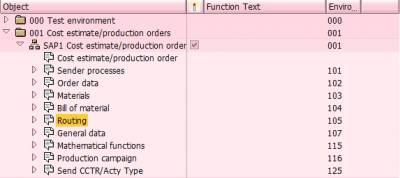
Environment 001 — Cost Estimate/Production Order includes sub-environment 105 — Routing, as shown in Figure 1. Sub-environment 105 is also available in environment 009 — Process Order.
2. Review the Routing Functions
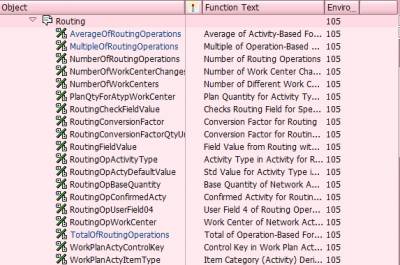
Expand the Routing sub-environment to display its functions, as shown in Figure 2.
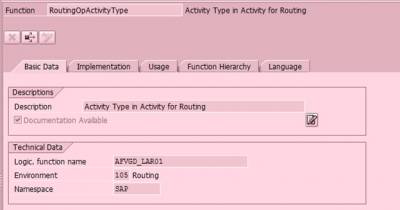
Select RoutingOpActivityType to open the right-hand pane. Its logical function name is AFVGD_LAR01, as shown in Figure 3.
RoutingOpActyDefaultValue and RoutingOpConfirmedActy are defined as AFVGD_VGW01 and AFVGD_ISM01, respectively. These logical functions read the structure AFVGD.
3. Copy and Name a Function
From the sub-environment, you can create a function from scratch or copy and modify an existing function. To use data relating to the second activity type in a routing, you can copy and modify the three functions described above.
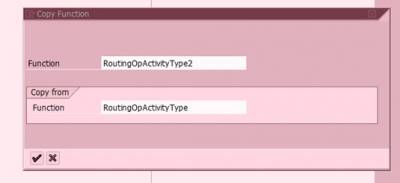
Select a function, right-click it, and choose Copy Function. Give the new function a name, as shown in Figure 4.
4. Change the Description and Logical Function
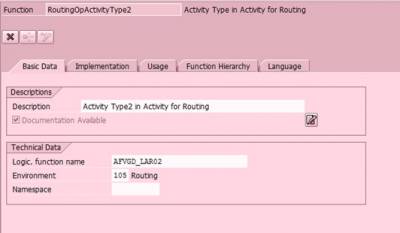
Change the description and logical function to reflect the field you want to access, as shown in Figure 5. A logical function can be based on a function module or a table field.
5. Update the Implementation and Save
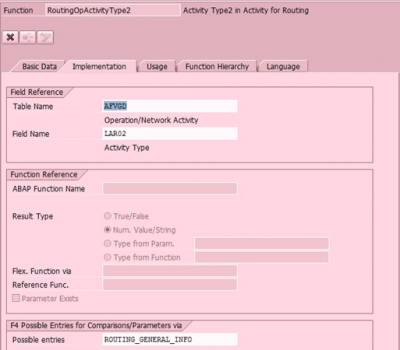
On the Implementation tab, change the field name to the field you want to access, as shown in Figure 6.
Make any required changes on the Usage, Function Hierarchy, and Language tabs, then save.
6. Check Available Tables in COTPLTABLE
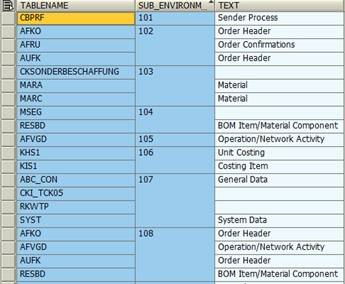
You can view the tables available for access in the various sub-environments in table COTPLTABLE, as shown in Figure 7.
Related SAP Template Allocation Resources
- SAP Template Allocation in CO: Martin Munzel Video
- SAP CO Template Allocation FAQ: Repetitive Manufacturing and Actual Quantities
Need Help with SAP Costing and Template Allocation?
ERPCorp helps teams review Product Costing, overhead allocation, and SAP Finance and Controlling configuration.
SAP Controlling Learning Resources
Explore practical sessions and connect with SAP Finance and Controlling experts at the SAP Controlling Conference. For available session recordings and learning resources, explore ERPCorp Membership.